Ensure GA4 Is Set Up
Make sure you’ve implemented the GA4 tracking code on your WordPress site. You can use plugins like “MonsterInsights” or “ExactMetrics” to integrate GA4 with WordPress.
Navigate to Events in GA4
- Go to your GA4 property.
- Click on “Events” in the left-hand sidebar.
Create a New Event
- Click on “Create Event”.
- You’ll be presented with options to define this new event.
Define Event Conditions
- For “Event Name”, enter something descriptive like “form_submission”.
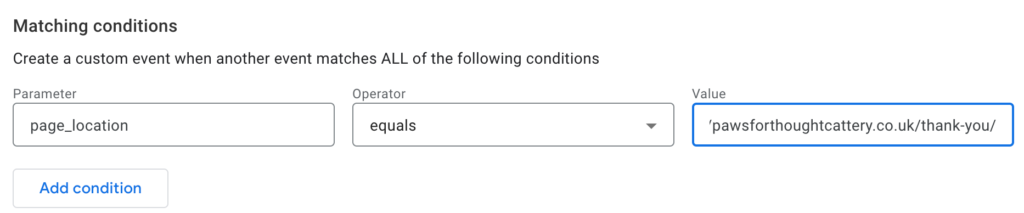
- Under “Matching conditions”, set it up as:
- Parameter: page_location
- Operator: contains
- Value: the URL or part of the URL of your thank-you page (e.g., yourdomain.com/thank-you or /thank-you)
-
- This condition essentially tells GA4 to register the “form_submission” event anytime someone visits the URL that contains yourdomain.com/thank-you.
- Save the Event.
Mark the Event as a Conversion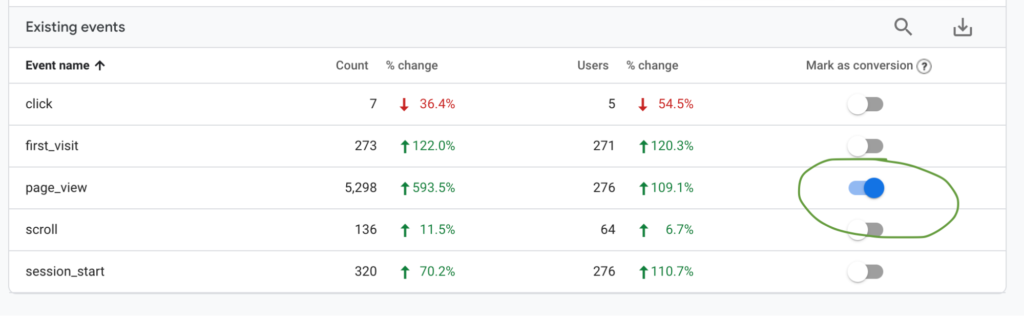
-
-
- After defining the event, go to “Events” on the sidebar.
- Tick Page_view
- Go to Conversions and this will appear there
-
Testing
-
- Submit a form on your website that redirects to the thank-you page.
- Check GA4’s real-time report to ensure that the “form_submission” event is triggered and registered as a conversion.
By following these steps, you’ll be able to track form submissions as conversions in GA4. Remember, the key difference with GA4 is the shift from “goals” in Universal Analytics to “events” in GA4.
Tracking PDF downloads
Tracking PDF downloads is a common use-case for event tracking, and you can set it up in GA4 using Google Tag Manager (GTM). Here’s how you can track PDF downloads as events and subsequently as conversions in GA4:
1. Google Tag Manager Setup:
- Create a New Tag: – Within GTM, start a new tag and choose GA4 as the tag type. – Choose “Event” as the track type. – For “Event Name”, you can use something like “pdf_download”.
- Configure the Trigger: – Create a new trigger of the type “Clicks” -> “Just Links”. – Set it to trigger for “Some Link Clicks”. – The condition would be “Click URL” “ends with” .pdf. This will ensure the trigger activates when a link ending in “.pdf” is clicked, signifying a PDF download.
- Link the Tag and the Trigger: – Associate the tag with the trigger you just created. – Save and then publish the changes in GTM.
2. Mark the Event as a Conversion in GA4:
- After you’ve set up the event in GTM, and once users start downloading PDFs and the event begins sending data to GA4, navigate to your GA4 property.
- Go to the “Events” section.
- Find your “pdf_download” event in the list (it may take a bit of time to start appearing, depending on site traffic).
- Toggle on the “Conversions” switch (or check the box, depending on the interface) next to the “pdf_download” event. This will mark any PDF download as a conversion in GA4.
3. Testing:
- Navigate to your website and try downloading a PDF.
- Check in GA4’s real-time report to ensure the “pdf_download” event is triggered. It should also be logged as a conversion if you’ve marked it as such.
This setup allows you to monitor the effectiveness of any PDF content you might have, whether it’s a brochure, white paper, or any other form of downloadable content.