

Jump to Add images | Delete images | Edit existing gallery
To add a gallery
- Login and go to Galleries:

- Click Add new:

- Give your gallery a title, it can be gallery In the title area
- To add photos scroll down to and click Gallery options

- Upload photos from your computer, by clicking Add photos, or use images you’ve uploaded already via the Media Library
 Select as many as you’d like to add: and click Select:
 - Click Publish when done
To add a gallery to a page:
- Go to the page you want to add your gallery to and click Edit page
- Click Add Element

And select Gallery:

- A gallery element will appear in the page, hover over the gallery and click the pencil icon

- Select the gallery you want to display on the page:

- And how you want the gallery to display, slider is a slideshow and masonry is more like a tiled gallery

- When you’re happy with the options you’ve chosen click Save
How to edit an existing gallery
- If you’re not there already logged in, go to the dashboard and Galleries:
- Select the gallery you want to edit, hover over it and click Edit:

To add photos
- Scroll down to and click Gallery options
- Upload photos from your computer, by clicking Add photos, or use images you’ve uploaded already via the Media Library
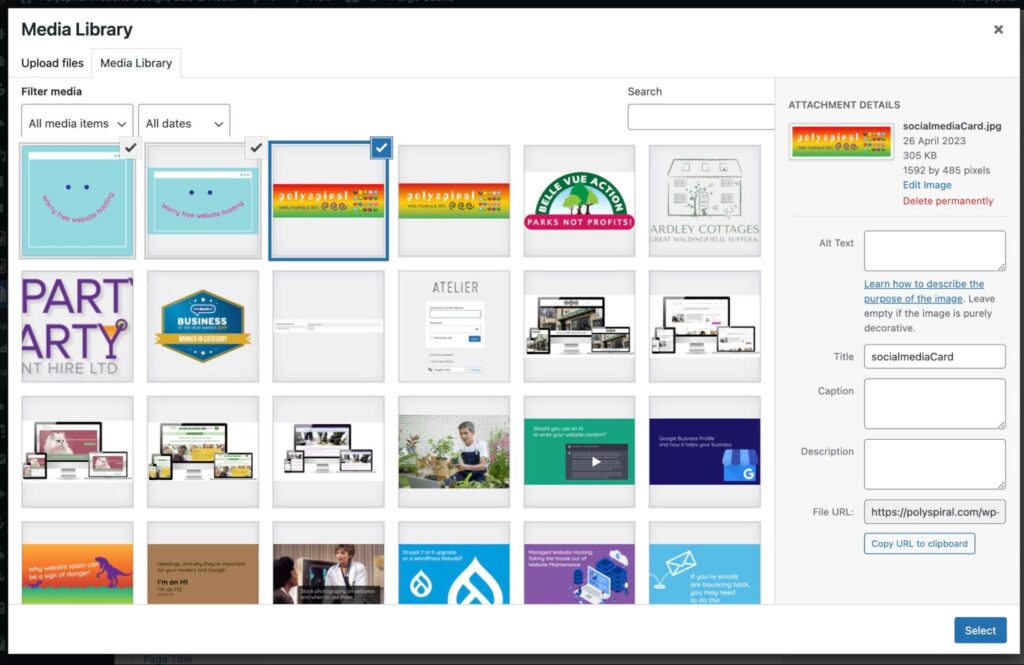 Select as many as you’d like to add: and click Select
 - Click Publish when done
To Delete photos:
- Follow steps above from a to b, where you’ll see all the photos in the gallery
- Hover over a photo, where the x appears in the corner., click that to remove the photo;

- Click Update
To change the order of the images
- Once logged in, go to Galleries
- Select the gallery you want to edit, hover over it and click Edit:
- Scroll down to and click Gallery options
- You’ll see:

- Click the image you want to move, and drag it to where you would like it to be

- Click update

